Meet Your New Dashboard
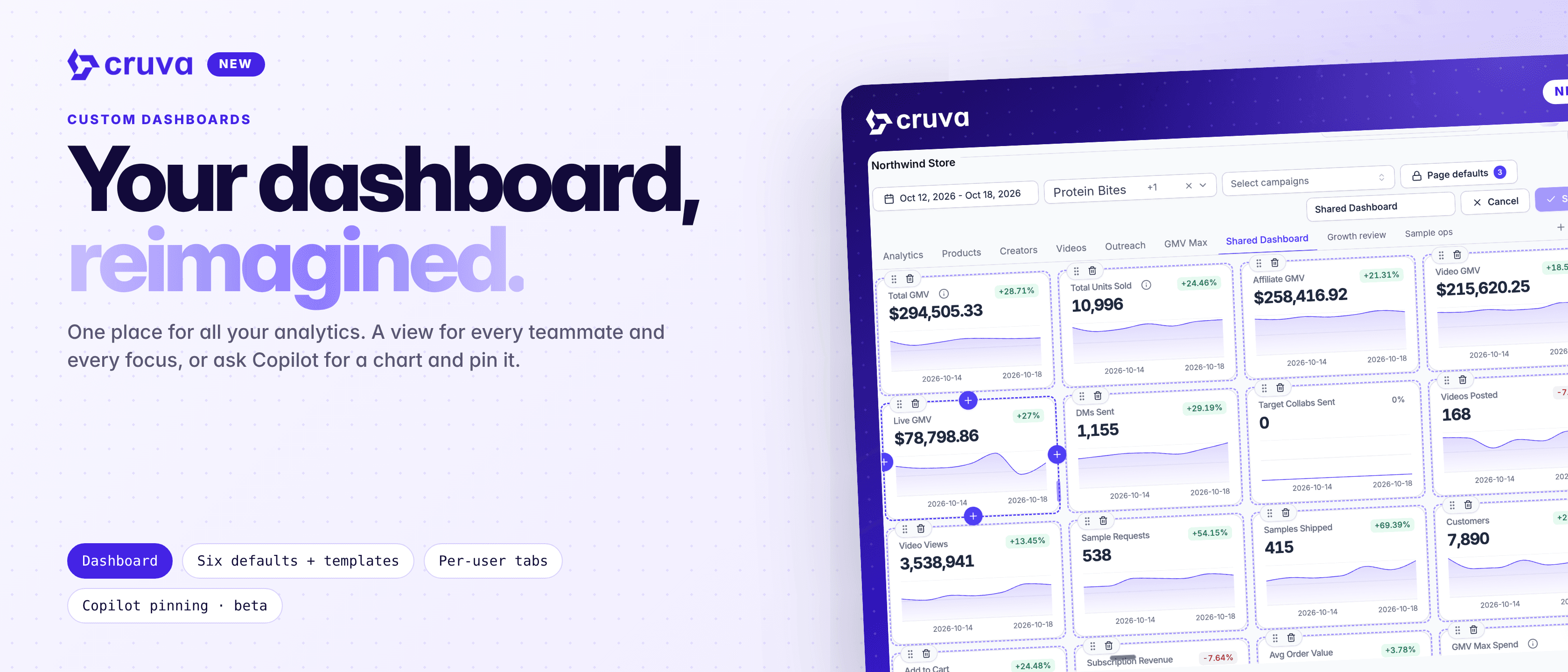
Every Dashboard tab is now yours to edit. Build views from any stat, chart or table in Cruva, choose which one opens first, and share any of them with a password-protected link.
The numbers you care about are spread across Cruva: GMV in Analytics, affiliates in Creators, samples in Samples, content in Videos. Getting the full picture meant clicking through report after report, and everyone on the team was looking at the same fixed view.
Too many places to look
The stats that matter to you live in different reports, so a quick check turns into a tour of the app.
One view for every role
A growth lead, a creator manager and a content lead all want different numbers first.
Answers that disappear
A useful chart from Copilot lived in the chat, not where you check your numbers every day.
How it works
On the Dashboard page, every tab is now a dashboard you can edit. You start with the same six views as before: Analytics, Products, Creators, Videos, Outreach and GMV Max. Change them, reorder them, or make your own!
- 1
Click + to make a dashboard
A new dashboard opens in edit mode with the Customize panel on the left. Name it at the top of the page, then start from a template such as Growth review, Creator health or Sample ops, or build it yourself.
- 2
Add anything from across Cruva
Search the Customize panel or open a section, then click or drag a stat, chart or table onto the board. Show any stat as a graph with its trend or as a plain number. Drag to reorder and resize, then click Save.
- 3
Choose what opens first
In a dashboard's ⋯ menu, pick Make this my default. Owners and admins can also choose Make this the shop default for everyone who hasn't picked their own.
- 4
Share it with a link
Click Share, then New link, and set a password of at least 8 characters. The link shows the dashboard read-only with that shop's data. Make as many links as you like, one per client if you want, and send each password separately.
- 5
Pin Copilot answersBeta
Ask Copilot something like "break down my GMV by channel". When the answer fits a widget, click Pin to dashboard. Pinned widgets stay live and follow the dashboard's date range.
Dashboards belong to the shop you're on, and everyone who can open that shop can see and edit them. Your tab row is your own, though: pin, unpin and reorder tabs without changing anyone else's.
One place for all your analytics. A view for every teammate and every focus.
What it looks like day to day
The filter bar at the top (dates, comparison period, products and campaigns) applies across the board, apart from a few widgets with their own scope, such as retention cohorts. In edit mode, Page defaults locks in the date range and grouping a dashboard opens with, so a "Last 30 days" review is always the last 30 days from the day someone opens it.
Generate report and full screen sit at the top of every dashboard. Hover any widget and choose Ask Copilot about this from its ⋯ menu to get an explanation of what changed. Deleted one of the six defaults by accident? Open All dashboards and click Restore a default board.
Running more than one shop? Show on other shops puts the same dashboard on each one, with each shop's own data. And press ⌘J (Ctrl+J on Windows) to find any dashboard by its name or by what's on it.
What to know about share links
- Always in sync. Widgets you add, move or remove show up the same way on every link.
- Several dashboards, one link. Tick more dashboards under Dashboards on this link and each one becomes a tab.
- Sample costs stay private. Sample spend, wasted sample spend and GMV per sample dollar are never shown on shared links.
- You stay in control. Change password signs out current viewers, and Revoke link stops a link working immediately.
Build your first custom dashboard
Custom dashboards are live now on the Dashboard page. Widgets your role or plan doesn't include are listed under Not available. Pinning Copilot answers is in beta and needs Copilot, which is on the Growth and Scale plans.