Cruva LIVE Data 2.0 is here
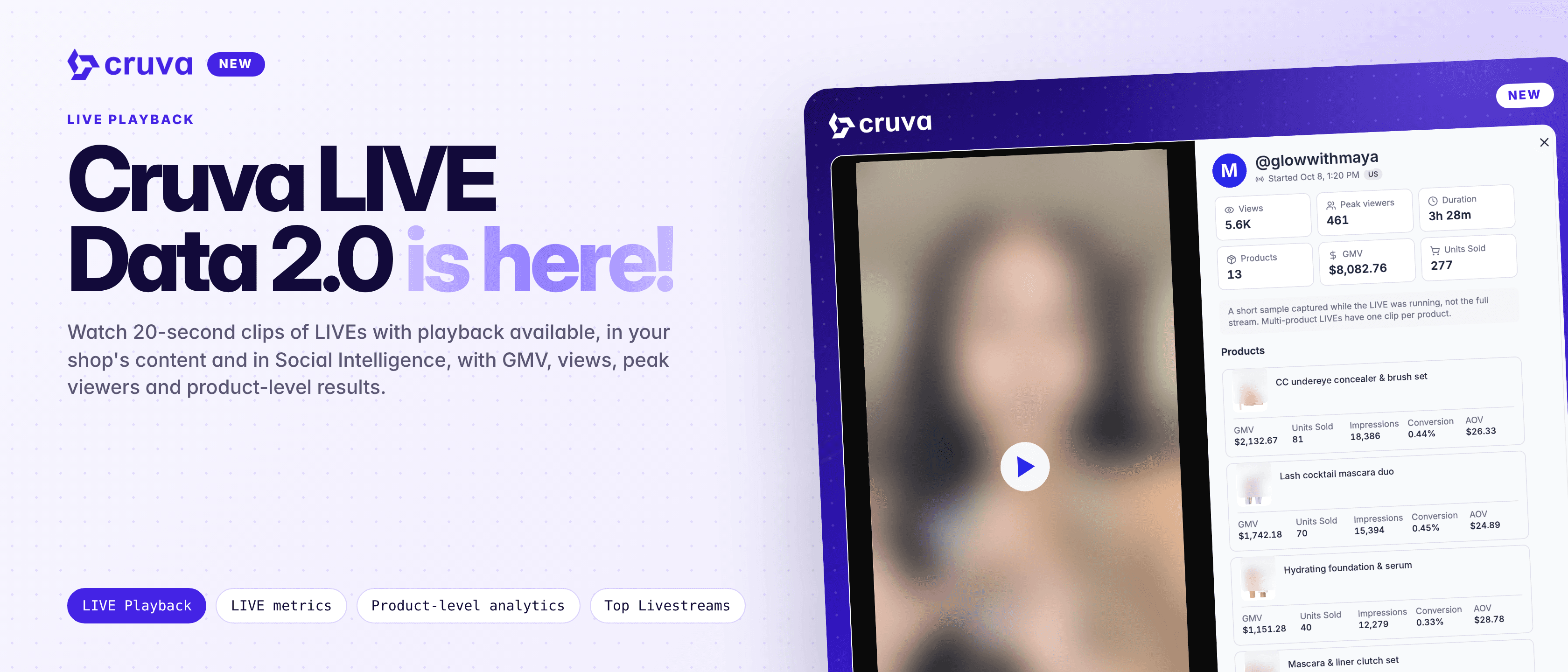
See the actual LIVE clip next to GMV, views, product performance, and more, across your own shop and Social Intelligence.
LIVEs sell, but once a stream ends it's hard to see what actually happened on it. You can read the numbers, but not what the creator showed, which products they pinned or how long each one stayed on screen.
Gone when the stream ends
Once a LIVE is over, there's no quick way to see what the creator actually did on it.
Numbers without context
GMV and views tell you a LIVE worked, not what the creator showed to make it work.
Competitor LIVEs are a black box
Finding out which streams are selling in your market meant watching TikTok live and hoping to catch them.
Which products got airtime
On a multi-product LIVE, it's hard to tell which items were pinned and for how long.
How it works
Cruva now records short clips of TikTok Shop LIVEs and shows them next to each stream's results. Rows with a recording show a play button.
- 1
Watch your creators' LIVEs
Go to Content > LIVEs and turn on Playback available at the right of the toolbar to show only LIVEs with a recording. The LIVEs list on a campaign shows play buttons too.
- 2
See what's selling in your market
Social Intelligence > Livestreams is a feed of completed LIVEs in your shop's market, ranked by GMV for the last 7 days by default. Search by creator handle or set a minimum view count or duration.
- 3
Check a brand's or product's LIVEs
Open a brand or product in Social Intelligence and go to its LIVEs tab to see the streams that pinned its items.
- 4
Open the player
Each clip runs about 20 seconds per product pinned, so a multi-product LIVE has one clip per product. Beside it: views, peak viewers, duration, GMV and units sold, plus each product's GMV, units sold, impressions, conversion and AOV.
- 5
Download the clips
Choose Download from the player menu to save any clip. With the creator's permission, you can turn the best LIVE moments into edited content or ads.
Clips are short samples, not the full stream. Some LIVEs have no recording because they ended before the recorder reached them. They show a crossed-out camera, and their reach and products still appear.
See what the creator showed, not just what the LIVE sold.
What you'll see in practice
The Livestreams table lists the creator, the main pinned product, when the LIVE started, duration, views, peak viewers and GMV, and you can sort by views, peak viewers or duration. Click a creator's @handle to open their Social Intelligence profile, or the arrow to open their TikTok LIVE page.
Recording began in mid-August 2026, so there are no clips from before then. Some rows show a dash for GMV, because LIVE GMV is reported for only part of the market. A gavel icon marks a LIVE auction.
Ways to use it
- Turn LIVE moments into content. Download a clip and, with the creator's permission, edit it into a post or an ad.
- Brief creators with real examples. Share what a strong LIVE for your category looks like.
- Find LIVE sellers to recruit. Spot creators running high-GMV LIVEs in your market and open their profile.
- Watch competitors' products on air. Use the LIVEs tab on a brand or product to see how others present it.
- Review your own creators' streams. Filter to Playback available and see which products got the most time on screen.
Watch your first LIVE clip
Find clips in Content > LIVEs and in Social Intelligence > Livestreams. Social Intelligence needs the Growth plan or higher, and sub-accounts need the Social Intelligence > Livestreams permission.